This article details the steps a Vendor can follow to submit an Extension request against a contract in the Contracts Management system. Use this when you need to formally request a change to the duration and/or value of an existing contract.
Prerequisites
- You must be logged in to the organisation's Contracts Management system.
- The organisation must have permitted you to perform actions (register entries) against the specific contract.
- You will need to know the specific end date or duration you are proposing.
Steps to Raise an Extension
You can start raising an Extension either from the Contracts Dashboard or the Contract Details screen.
Option A: From the Contracts Dashboard
- Navigate to the Contract Specific Actions section at the top of the page.
- Select the relevant contract.
- Select Extension from the options.
- Click Go.
Option B: From the Contract Details
- On the Contracts Dashboard, click on the contract title to open the details.
- Go to the Registers tab.
- Locate the Extensions section.
- Click on the big plus (+) button on the right to create a new item.
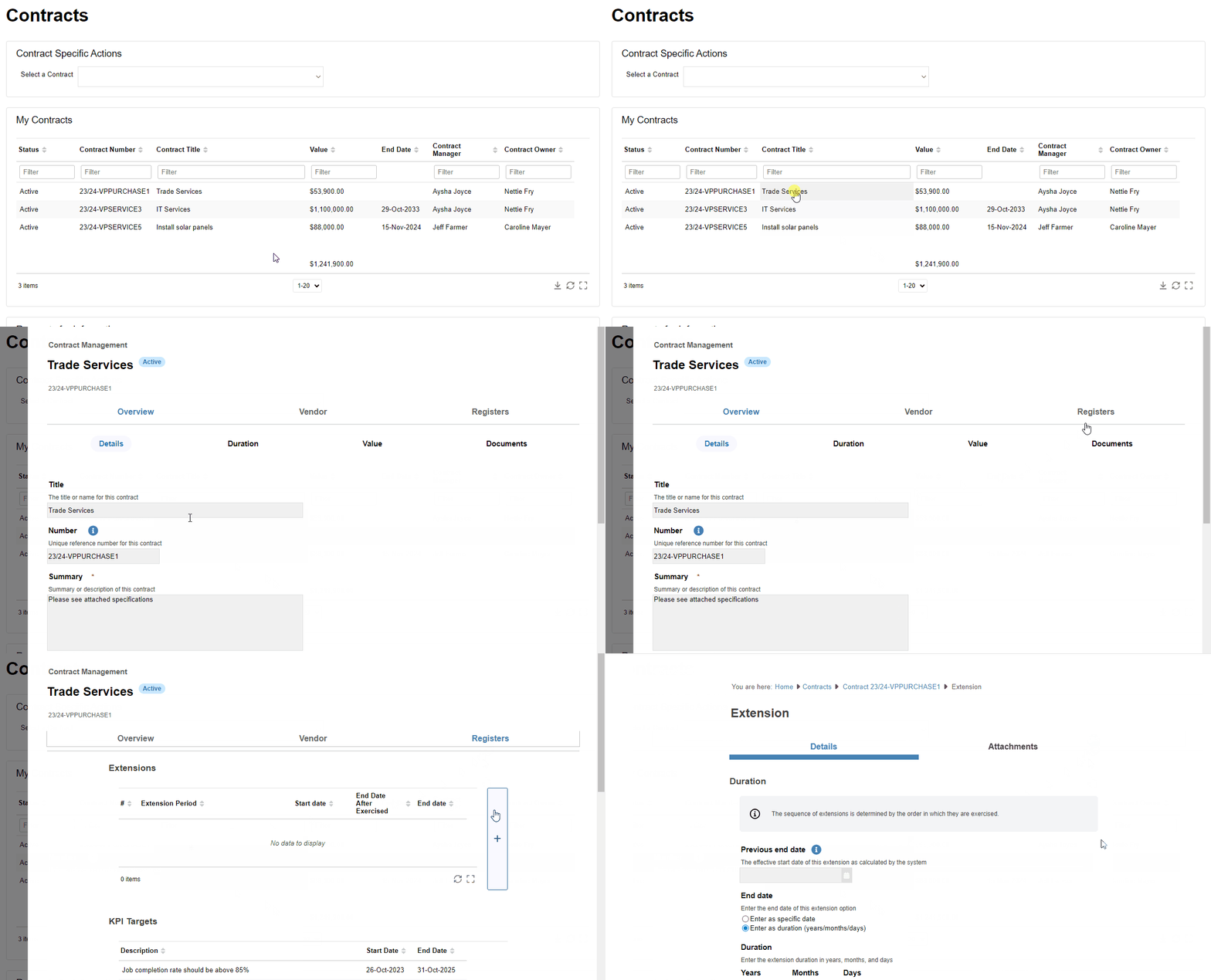
Specify Duration and Value
- Specify the duration of the extension by entering a specific end date OR entering the duration in years, months, and days.
- If applicable, navigate to the section to specify the value of the extension.
Enter the value excluding tax.- Select the tax type to calculate, or manually enter the tax amount applicable to the extension.
- Select the tax type to calculate, or manually enter the tax amount applicable to the extension.
- Select the Attachments tab at the top.
- Upload any relevant files.
Submit for Approval
- Once completed, click the Prepare approval submission button at the bottom of the page.
- On the Approval Submission page, add notes and attach reference documents if needed.
- When ready, hit the Submit button to notify the required approvers.
What's Next / Related
Limits & Notes
- You must enter the extension value excluding tax before specifying the tax type/amount.
- The required approvers will automatically populate on the Approval Submission page.